 Pixvio.Ai
Guides
Get the app
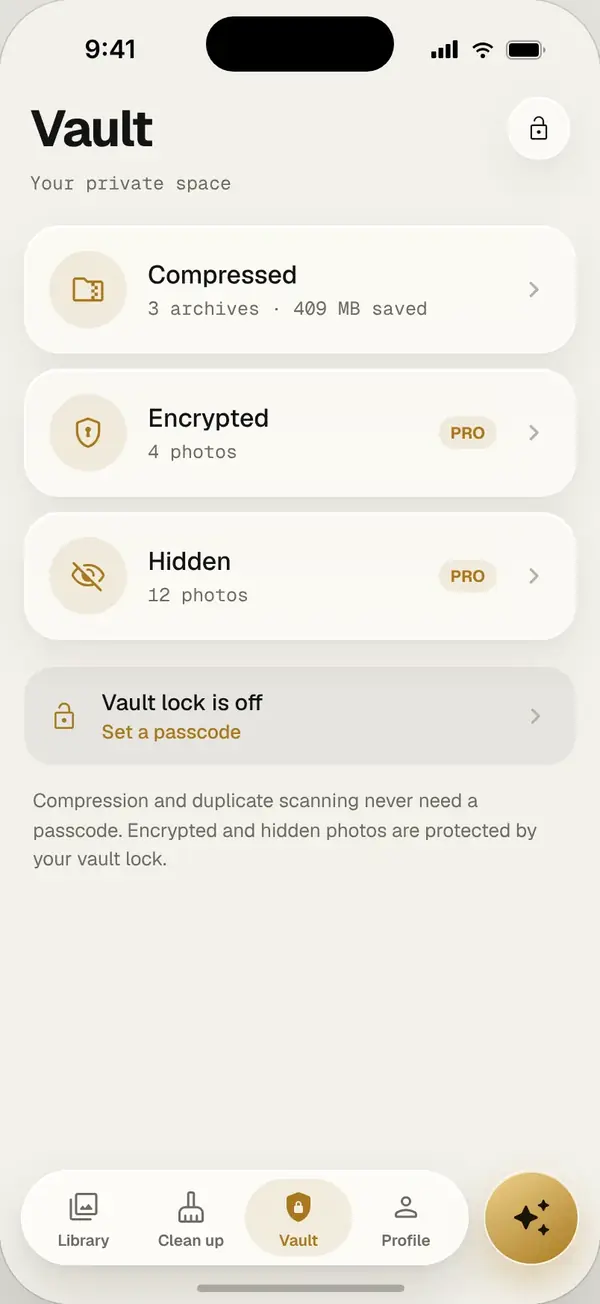
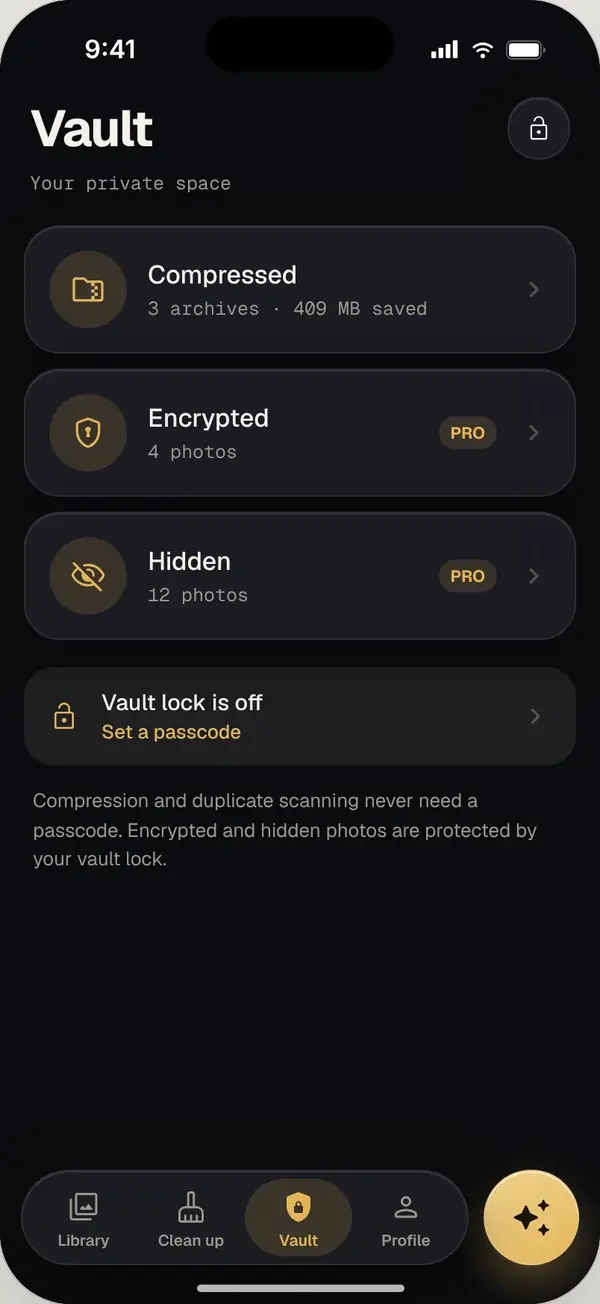
You can hide private photos on Android with a locked folder in your gallery app, your phone maker’s secure folder (such as Samsung Secure Folder), or an encrypted vault app. For sensitive photos, choose encryption, like Pixvio’s AES-256 vault.
1. A locked folder in your gallery app
Some gallery apps include a locked or hidden folder. It keeps photos out of the main view and asks for your screen lock to open. Check your gallery’s menu for an option like “Locked Folder” or “Hide”.
2. Your phone maker’s secure folder
Some Android phones include a separate secure space with its own lock, such as Samsung’s Secure Folder. It can hold photos and apps away from the rest of the phone.
3. An encrypted photo vault app
A dedicated vault gives you more control. Pixvio’s vault can hide photos or encrypt them with AES-256 on your phone, unlocked with your face or fingerprint. There is no account and nothing is uploaded.
Which should you choose?
- Just out of sight: a hidden or locked folder is enough
- Sensitive documents: use encryption, like Pixvio’s AES-256 vault
- Always: keep a backup, because hidden photos can still be lost with the phone
Frequently asked questions
Are hidden photos encrypted?
Not always. Hiding only removes them from view. Choose an option with encryption, like Pixvio’s AES-256 vault, for sensitive photos.
Will hidden photos show up in other apps?
Photos moved into Pixvio’s vault no longer appear in your main gallery.